Text & UI
These modules render bitmap text and provide HUD, dialog, menu, grid-cursor, and options controls. See the reference for signatures and the tutorials for complete examples.
picogame_font
Section titled “picogame_font”This module renders a fontio font, commonly terminalio.FONT, into a PAL8 picogame.Bitmap. Use it for text that needs to become a sprite or an immediate label.
If you just want a score in a corner, Label is the simplest choice; the fuller widget picture (scene layers vs. immediate widgets) is explained below under picogame_ui.
render_text(pg, font, text, fg, bg=None)- composestextinto aPAL8bitmap and returns the tuple(bmp, w, h)(bitmap plus pixel size).fg/bgare wire colours frompg.rgb565(...).bg=Noneleaves the background transparent (palette index 0); an opaquebgmeans a redraw fully overwrites the old text, so HUD updates need no separate clear.render_text_pal(pg, font, text, fg, bg=None)- same as above but returns(bmp, w, h, palette). Keep thepalette(anarray('H')) and mutatepalette[1](the fg colour) for a live colour shimmer without rebuilding the bitmap - the CBitmapreads the same buffer.Label(pg, font, x, y, fg, bg)- a positioned label drawn immediately (good for a HUD over a screen you render yourself)..set(text)- re-renders only if the text changed; returnsTrueif it did,Falseif skipped. Coerces non-strings viastr()..move(x, y)- repositions and forces a re-render at the new spot on the nextset/draw..draw(display, buffer)- repaints just the label’s rectangle viapg.render(a single present)..w,.h- pixel size of the last rendered text.
import picogame_font, terminaliohud = picogame_font.Label(pg, terminalio.FONT, 4, 4, pg.rgb565(255, 255, 255), BG)shown_score = -1 # shadow int: last value the label shows# each frame, after you draw the screen:if score != shown_score: # only format when the number changes shown_score = score hud.set("SCORE %06d" % score)hud.draw(picogame_game.display(), bufA) # repaints just its rect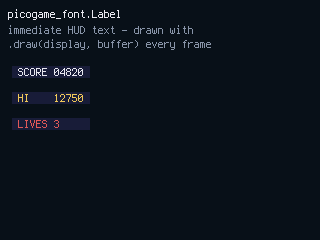
Extra glyphs: ExtraFont
Section titled “Extra glyphs: ExtraFont”terminalio.FONT is ASCII only. picogame_font.ExtraFont extends it with glyphs from one or more small
BDF files, looked up as fallbacks — the built-in font first, then each BDF in order, so extra files
only ever add glyphs and blend seamlessly with normal text. Two subsets ship in lib/fonts/ (cut from
CircuitPython’s own Terminus build, the same one terminalio.FONT comes from):
picogame_cz.bdf— Czech diacritics (á č ď é ě í ň ó ř š ť ú ů ý ž and capitals).picogame_symbols.bdf— game symbols: arrows, hearts, block/shade fills, triangles, ✓/✗, ♥ ♫ ☼, ° ½ × ÷ and more:
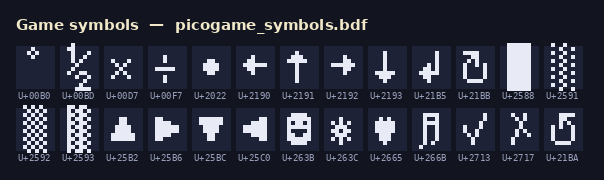
import picogame_fontfont = picogame_font.ExtraFont("/lib/fonts/picogame_cz.bdf", "/lib/fonts/picogame_symbols.bdf")bmp, w, h = picogame_font.render_text(pg, font, "Život 3 ♥♥♥ →", fg)Pass the ExtraFont anywhere this module takes a font (render_text, render_text_pal, Label, and the
picogame_ui widgets built on them). Glyphs load eagerly (~20 B each; a 30-glyph set is under 1 KB).
Limitation: ExtraFont is a Python-side font for this module’s render paths only. The native C
text path (picogame.Canvas.text, and therefore picogame_ui.SceneLabel / HudBar and a StripDraw
view.text) validates a fontio.BuiltinFont in firmware and will not accept an ExtraFont — use the
render_text/Label path when you need the extra glyphs. To make your own subset, tools/make_bdf_subset.py.
picogame_bitfont
Section titled “picogame_bitfont”This 8×8 bitmap font uses four shades and includes arrows, hearts, a star, a note, and box-drawing symbols in codes 0–31; codes 32 and above cover ASCII. Its outline can keep transparent text legible over the game world.
render_text(pg, text, fg=None, outline=None, mid=None, bg=None)- renderstextto aPAL8bitmap and returns(bitmap, w, h). The four shades map to:0 -> bg/transparent,1 -> outline,2 -> mid,3 -> fg. Colour defaults:fgwhite,outlineblack,midmid-grey; all arergb565wire colours. Supports\nfor multi-line. Passbgfor an opaque background (else index 0 is transparent).- Symbol constants (1-char strings you concatenate into text):
ARROW_U,ARROW_D,ARROW_R,ARROW_L,BOXX,STAR,HEART,BALL,NOTE. GLYPH_W,GLYPH_H- both8, the per-glyph cell size.
import picogame_bitfont as bfbmp, w, h = bf.render_text(pg, "LIVES " + bf.HEART * 3) # white, outlined, transparentspr = pg.Sprite(bmp, x, y) # place anywherespr.scale = 2 # scale up for big text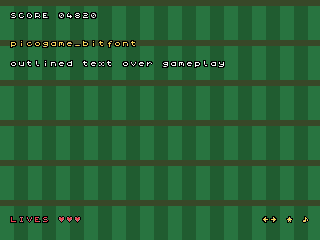
picogame_ui
Section titled “picogame_ui”Choose widgets by who owns the affected pixels:
SceneLabel,SceneBox, andSceneMenuare fixed scene layers.scene.refresh()repaints them when needed, so use them inside a live or scrolling scene.picogame_font.Label,TextBox, andMenudraw immediately throughpg.render(). Use them on a screen whose redraw you control.HudBaris also immediate, but belongs in a border reserved outside the scene.
Pick by what owns the pixels:
| Situation | Class |
|---|---|
| Static screen you redraw yourself (title, game-over, a HUD you repaint) | Label |
| A live, scrolling scene where the HUD must not scroll | SceneLabel |
| A reserved edge bar / status strip | HudBar |
| A transient dialog / message box over the live world | SceneBox |
| A dialog / battle / menu box on a static screen | TextBox |
tick()-based widgets return: a chosen index/cell on A (confirm), ui.CANCEL (-2) on B (back), or None while navigating. See scene-format for the fixed layer and hardware for the buttons.
SceneLabel(scene, pg, font, x, y, fg, bg) - one line of text pinned over a scrolling world.
.set(text)- re-renders only on change (swaps the sprite’s bitmap; dirty-rect handles old/new bounds). A blank/empty string hides the sprite, leaving no leftover bg patch..reserve(chars)- reserve the label’s text buffer now, on the fresh startup heap, for up tocharscharacters, so a long line first shown later (e.g. a game-over banner) isn’t allocated on a fragmented heap (aMemoryError). Renders nothing visible. See memory.
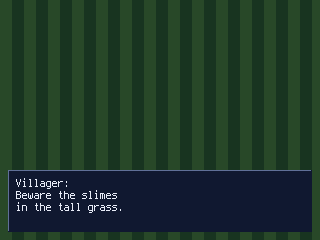
SceneBox(scene, pg, font, x, y, w, h, fg, bg, nlines=3, key=None, border=None) - a multi-line dialog or status panel over a live scene. Its StripDraw callback composites the panel, border, and text without retaining a pixel surface. Pass border for a raised frame. Geometry: 8 px of padding left and right, 7 px on top, rows LINE_H (12 px) apart - a row holds (w - 16) // 6 characters of the built-in 6 px font ((200 - 16) // 6 = 30) and the box wants h >= 14 + 12 * nlines. A longer line is not clipped - it runs past the right edge (the simulator warns); wrap or widen.
.show(lines)- fill the panel and set text, then reveal. Call once, not per frame. Only the firstnlinesrows fit; extra lines are dropped (the simulator warns) - build the box with a largernlinesor split the text..hide()- make the panel fully transparent and blank the rows..visible-Truewhile shown; assigning it toggles the panel likeshow()/hide()without touching the text..set_line(i, text)- update one row in place (no Canvas/border redraw).
HudBar(pg, display, buffer, x, y, w, h, bg) - an immediate HUD drawn in a border reserved with Scene(..., top=/bottom=). Call draw() only after its contents change. It stores label strings and icon references but no panel-sized pixel surface. buffer is the render buffer from setup on SPI targets and may be None on framebuffer targets.
.add(sprite)- store an icon sprite (hearts, gauges) in the bar; returns it. It’s blitted at its own x/y ondraw()..label(font, x, y, fg, text=" ")- add a text field; returns aHudLabelhandle (not a sprite) which you update withhandle.set(text)(the same.setverb asSceneLabel). The text is composited directly, no per-label sprite..draw()- repaint the bar (flat bg + icons + text) and push it in onepg.render. Takes no arguments - the bar stores the display/buffer/geometry at construction. Call only on HUD changes.
hud = ui.HudBar(pg, picogame_game.display(), bufA, 0, 0, W, BAR, pg.rgb565(10, 12, 24))hud_l = hud.label(terminalio.FONT, 4, 3, INK, "SCORE 0 LIVES 3")hud.draw()# later, only when it changes:hud_l.set("SCORE %d LIVES %d" % (score, lives))hud.draw()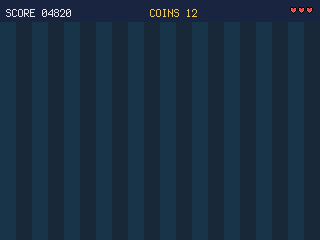
TextBox(pg, font, x, y, w, h, fg, bg, maxlines=6) - a screen-space multi-line box (filled rect + text rows) for static dialog/battle/menu screens.
.draw(display, buffer, lines, force=False)- skips the repaint whenlinesare unchanged; when it does draw, the bg and every row go out in onepg.render(no blank-fill flash). Passforce=Trueafter the screen under it was wiped (e.g. a full-screenpg.render)..draw_line(display, buffer, i, text)- repaint a single row in place, atomically.
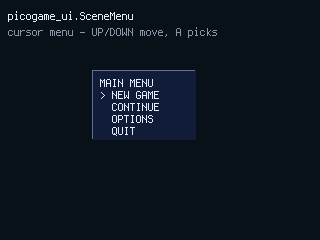
Menu(pg, font, x, y, items, fg, bg, *, title=None, rows=None, width=None, paged=True) - an immediate cursor menu built on TextBox. UP and DOWN use auto-repeat. rows=None shows all items; a smaller value creates a scrolling window. With paged=True, crossing an edge moves by a page instead of one row. Arguments after * are keyword-only.
.tick(btn)- returns the chosen index on A,ui.CANCELon B, elseNone..draw(display, buffer, force=False)- repaints only what changed (nothing / the 2 affected rows on a cursor move / the whole box on scroll).force=Truerepaints unconditionally after a wipe.
bmenu = ui.Menu(pg, terminalio.FONT, 8, H - 72, ["ATTACK", "MAGIC", "HEAL", "FLEE"], WHITE, NAVY)# each frame:act = bmenu.tick(btn) # index on A, ui.CANCEL on B, else Nonebmenu.draw(picogame_game.display(), bufA)SceneMenu(scene, pg, font, x, y, items, fg, bg, title=None, rows=None, width=None, border=None, paged=True) - the same menu but built on SceneBox, for use over a live scene (battle actions, an in-game popup). Same navigation/paging as Menu.
.show(sel=0)- reveal it (resets the cursor). The scene paints it from then on - nodraw()call..hide()- hide it..tick(btn)- same return contract asMenu; repaints only the rows that changed.
GridCursor(cols, rows, tx=0, ty=0, wrap=False, delay=15, interval=4) - logic-only 2D cursor for a battlefield, tile inventory, or match-3. It owns movement (D-pad auto-repeat) and confirm/cancel; you draw the grid and a highlight at (cursor.tx, cursor.ty). wrap=True wraps at edges, else it clamps.
.tick(btn)- returns the(tx, ty)tuple on A,ui.CANCELon B, elseNone..tx,.ty- current cell..index(property) -ty * cols + tx, handy for indexing a flat list.
cur = ui.GridCursor(N, N) # N x N board# each frame:pick = cur.tick(btn) # (tx, ty) on A, ui.CANCEL on B, else None# you draw the highlight yourself at (cur.tx, cur.ty)picogame_options
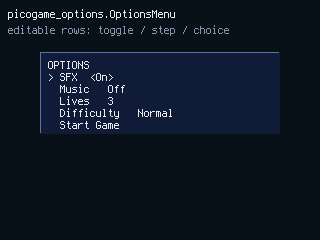
Section titled “picogame_options”OptionsMenu adds editable rows to a SceneBox. Use it for settings, shops, or selection screens that combine choices, numeric steps, toggles, and actions. It is a scene-layer widget, so scene.refresh() displays value changes.
OptionsMenu(scene, pg, font, x, y, w, rows, fg, bg, title=None, border=None)-rowsis a list of dicts, each with akind:choice-{"key", "label", "kind": "choice", "choices": [...]}; cycles through the list. (A non-emptychoicesis required - it raisesValueErrorup front otherwise.)stepper-{"key", "label", "kind": "stepper", "value", "min", "max"}; also honours an optional"step"(default 1). Clamps tomin/max.toggle-{"key", "label", "kind": "toggle", "value": True/False}.action-{"key", "label", "kind": "action"}; no value, just returns its key on A.
.show(sel=0)- reveal and render (call once);scene.refresh()paints it after..hide()- hide the panel..tick(btn)- UP/DOWN move the cursor; LEFT/RIGHT change the selected row’s value live (steppers/choices auto-repeat while held; a toggle flips only on a fresh press, so it can’t oscillate). Returns the selected row’skeyon A,ui.CANCELon B, elseNone..value(key)- read a row’s current value any time: achoicereturns the chosen string, astepperan int, atogglea bool;Noneif no such key.
import picogame_options as optmenu = opt.OptionsMenu(scene, pg, font, 40, 40, 240, [ {"key": "diff", "label": "Difficulty", "kind": "choice", "choices": ["Easy", "Normal", "Hard"]}, {"key": "vol", "label": "Volume", "kind": "stepper", "value": 7, "min": 0, "max": 10}, {"key": "snd", "label": "Sound", "kind": "toggle", "value": True}, {"key": "done", "label": "Start", "kind": "action"},], WHITE, NAVY, title="OPTIONS")menu.show()while True: btn.poll() k = menu.tick(btn) if k == "done": diff = menu.value("diff") # read live values on the action row elif k == opt.CANCEL: menu.hide() scene.refresh() # paints the menu - no draw() call