The games menu (launcher)
The launcher is picogame’s games menu — the official, and optional, way to keep several games on one board and switch between them. Copy games onto the drive and the launcher lists them; pick one with the D-pad and play, reset to come back.
It’s optional: the quick-start packs boot into the launcher (their root
code.py runs it), but a board whose code.py is a single game just runs that game — no menu. Use
the launcher when you want more than one game on the same board.
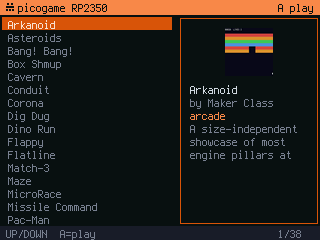
Controls
Section titled “Controls”- UP / DOWN — move through the list.
- A — start the highlighted game.
- RESET (the board’s reset button) — return to the launcher from a game.
How it finds games
Section titled “How it finds games”By default the launcher scans the demos/, games/ and apps/ folders on the drive — a missing one
is simply skipped. Each game is a folder with a code.py entry and its compiled .mpy:
games/ picotris/ code.py # 2-line stub that imports the game picotris.mpy # the compiled game metadata.json # title, icon, ... (optional) icon.bmp # menu icon (optional)A folder with a code.py but no metadata still shows up — the launcher falls back to the folder name
and a letter placeholder icon.
A custom boot code.py can scan a different set of folders — just pass them:
picogame_launcher.run(roots=("mygames", "demos")).
Add your own game
Section titled “Add your own game”- Compile your game to
.mpy(mpy-cross yourgame.py), or drop the.pyin to compile on-device. - Make a folder in
apps/— that’s where your own games go, next to the bundledgames/anddemos/— sayapps/yourgame/, with acode.pystub that imports it:import yourgame - Optional — add a
metadata.jsonbeside it so it reads nicely in the menu, plus a smallicon.bmp(a 48-pixel BMP works well):{"title": "Your Game","author": "You","category": "arcade","players": 1,"desc": "One line about it.","icon": "icon.bmp"} - Reset the board — it appears in the menu.
Two ways to describe a game
Section titled “Two ways to describe a game”A folder can carry a small manifest so it reads nicely in the menu. Three sources work, in this order:
metadata.json— simple and FruitJamOS-compatible (title+icon, plus optionalauthor,category,players,desc,entry). One game per folder — this is what the example above uses, so the same folder shows up in both menus.picogame.json— the richer form. Either a flat object (title,entry,icon, …) for one game, or an"apps"list to offer several games from one folder — handy for a collection or a game with variants:Each entry names its own{"apps": [{ "title": "Game A", "entry": "a.py", "icon": "a.bmp" },{ "title": "Game B", "entry": "b.py", "icon": "b.bmp" }]}entry,titleandicon(and optionalauthor/category/players/desc).picogame.jsonis read beforemetadata.json.game.json— a game made with the level editor needs no manifest at all: the launcher reads itsnameandicon(and an optionallauncherblock withauthor,category,players,desc,entry) straight from the game’s own file, without parsing the levels.