Tutorial 1 — Bounce
We build a complete brick-breaker, one mechanic per step. Each stepN_*.py runs on its
own: read the code below and press Try it to run that step right in the browser, or run it
locally with:
Run these from the cloned picogame folder (the one from Your first game).
python3 sim/run.py tutorials/01-bounce/stepN_name.py --shot /tmp/out.png(add --hold RIGHT etc. to hold a button, or --backend pygame to play it live.)
The first eight steps use generated rectangles. The final step replaces their bitmaps without changing the game loop. Keeping art separate from mechanics also lets the editor change a scene’s graphics without changing its gameplay code.
step 1 — step1_hello.py · the render loop
Section titled “step 1 — step1_hello.py · the render loop”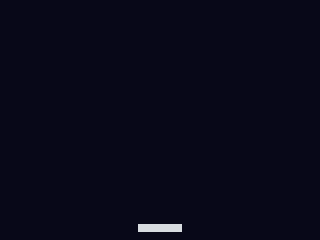 picogame uses retained mode (you add objects once and then just
change what moved, instead of redrawing the screen yourself): you
picogame uses retained mode (you add objects once and then just
change what moved, instead of redrawing the screen yourself): you scene.add() objects once
to the Scene, then each frame you change their state and call scene.refresh() and
the engine redraws. A “paddle” is a Sprite
whose bitmap is a solid rectangle from picogame_shapes’s shp.rect(w, h, colour).
picogame_game.setup() does the display boilerplate and returns
(scene, buffer_a, buffer_b). On SPI targets the last two values are reusable render strips;
on framebuffer targets they are None. This step needs only the scene, so it uses scene, _, _.
picogame_clock’s Clock(40) caps the loop to 40 FPS.
You see: a grey bar near the bottom. Try it: change the rectangle’s size/colour.
16 collapsed lines
# Bounce -- step 1: get ONE thing on screen.## What you learn: the picogame render loop. A game is (a) a Scene you add objects# to ONCE, then (b) a loop that moves things and calls scene.refresh(). The engine# is retained-mode: you don't redraw by hand, you change object state and refresh.## New in this step: picogame_game.setup(), picogame_shapes.rect(), pg.Sprite,# scene.add(), scene.refresh(), the frame clock.## Run it: python3 sim/run.py tutorials/01-bounce/step1_hello.py --shot /tmp/s1.png# On device: copy this file + the lib/ helpers to CIRCUITPY.
import picogame as pgimport picogame_gameimport picogame_clockimport picogame_shapes as shp
W, H = picogame_game.screen() # never hardcode: the same game runs at 240x240 and 640x480PADDLE_W, PADDLE_H = 44, 8
# setup() takes over the display and gives us a Scene + its two strip buffers.scene, _, _ = picogame_game.setup(background=pg.rgb565(8, 10, 24))clock = picogame_clock.Clock(40) # cap the loop to 40 FPS
# A "paddle" is just a Sprite whose bitmap is a solid rectangle. shp.rect(w,h,color)# makes that bitmap -- a rectangle and an image sprite are the SAME kind of object# (we'll prove that in step 9 by swapping the bitmap for art, with no other change).paddle = pg.Sprite(shp.rect(PADDLE_W, PADDLE_H, pg.rgb565(220, 220, 230)), (W - PADDLE_W) // 2, H - 16)
scene.add(paddle) # add it to the scene ONCE
while True: scene.refresh() # the engine draws the scene clock.tick() # sleep to the next framestep 2 — step2_move.py · input
Section titled “step 2 — step2_move.py · input”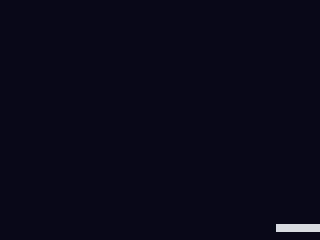
picogame_input’s Buttons() samples the buttons each poll(). is_pressed(RIGHT) - is_pressed(LEFT) is a tidy −1/0/+1 axis; we move the paddle and clamp it inside the screen.
You see: the paddle slides with LEFT/RIGHT. Try it: change SPEED.
16 collapsed lines
# Bounce -- step 2: move the paddle with the buttons.## What you learn: input. picogame_input.Buttons reads the board's buttons into a# bitmask each frame; btn.is_pressed(btn.LEFT) is the held state. We move the paddle# and clamp it to the screen so it can't leave.## New vs step 1: picogame_input.Buttons, btn.poll()/btn.is_pressed(), sprite.move(),# clamping with max()/min().## Run: python3 sim/run.py tutorials/01-bounce/step2_move.py --hold RIGHT --shot /tmp/s2.png
import picogame as pgimport picogame_gameimport picogame_inputimport picogame_clockimport picogame_shapes as shp
W, H = picogame_game.screen() # never hardcode: the same game runs at 240x240 and 640x480PADDLE_W, PADDLE_H = 44, 8SPEED = 5
scene, _, _ = picogame_game.setup(background=pg.rgb565(8, 10, 24))btn = picogame_input.Buttons() # NEW: the buttonsclock = picogame_clock.Clock(40)
paddle = pg.Sprite(shp.rect(PADDLE_W, PADDLE_H, pg.rgb565(220, 220, 230)), (W - PADDLE_W) // 2, H - 16)scene.add(paddle)
while True: btn.poll() # sample the buttons once per frame # RIGHT minus LEFT gives -1 / 0 / +1 -- a tidy way to read a 1-axis control. delta_x = btn.is_pressed(btn.RIGHT) - btn.is_pressed(btn.LEFT) if delta_x: x = paddle.x + delta_x * SPEED x = max(0, min(W - PADDLE_W, x)) # clamp inside the screen paddle.move(x, paddle.y)
scene.refresh() clock.tick()step 3 — step3_ball.py · velocity (whole pixels)
Section titled “step 3 — step3_ball.py · velocity (whole pixels)”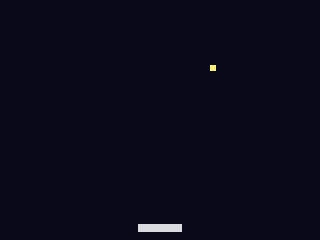 Velocity is just how many whole pixels a thing moves each frame:
 velocity_x across,
velocity_y down. Add the velocity to the ball’s position every frame and it travels in a
straight line. Here we keep it simple: integer velocity, integer position, whole-pixel steps.
You see: the ball flies off-screen (we fix that next). Try it: change velocity_x, velocity_y.
17 collapsed lines
# Bounce -- step 3: a ball with velocity (whole-pixel movement).## What you learn: velocity. Velocity is just how many pixels a thing moves each# frame: velocity_x across, velocity_y down. Add the velocity to the ball's# position every frame and it travels in a straight line. Here we move in WHOLE# pixels -- integer velocity, integer position -- which is all this step needs.## New vs step 2: a velocity (velocity_x, velocity_y) added to ball.x / ball.y each# frame. The ball flies off-screen for now -- step 4 makes it bounce.## Run: python3 sim/run.py tutorials/01-bounce/step3_ball.py --shot /tmp/s3.png
import picogame as pgimport picogame_gameimport picogame_inputimport picogame_clockimport picogame_shapes as shp
W, H = picogame_game.screen() # never hardcode: the same game runs at 240x240 and 640x480PADDLE_W, PADDLE_H = 44, 8BALL = 6
scene, _, _ = picogame_game.setup(background=pg.rgb565(8, 10, 24))btn = picogame_input.Buttons()clock = picogame_clock.Clock(40)
paddle = pg.Sprite(shp.rect(PADDLE_W, PADDLE_H, pg.rgb565(220, 220, 230)), (W - PADDLE_W) // 2, H - 16)ball = pg.Sprite(shp.rect(BALL, BALL, pg.rgb565(255, 240, 120)), W // 2, H // 2)scene.add(paddle)scene.add(ball)
velocity_x, velocity_y = 3, -3 # NEW: whole pixels moved per frame
while True: btn.poll() delta_x = btn.is_pressed(btn.RIGHT) - btn.is_pressed(btn.LEFT) if delta_x: paddle.move(max(0, min(W - PADDLE_W, paddle.x + delta_x * 5)), paddle.y)
# move the ball by its velocity (whole pixels) ball.move(ball.x + velocity_x, ball.y + velocity_y)
scene.refresh() clock.tick()step 4 — step4_walls.py · reflection
Section titled “step 4 — step4_walls.py · reflection”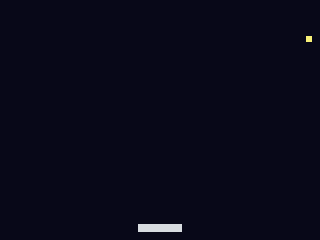 A bounce is just flipping the velocity component heading into a wall and pinning the ball
to the edge so it can’t tunnel out. Left/right flip
A bounce is just flipping the velocity component heading into a wall and pinning the ball
to the edge so it can’t tunnel out. Left/right flip velocity_x, the top flips velocity_y.
Still whole-pixel velocity here. The bottom stays open; falling past it is a “miss”. You
see: the ball bounces around three walls forever. Try it: make the top open too and
watch it escape.
17 collapsed lines
# Bounce -- step 4: bounce off the walls.## What you learn: reflection. A bounce is just flipping the velocity component that# points into the wall, and pinning the position back to the edge so the ball can't# tunnel out. Left/right flip velocity_x; the top flips velocity_y. We're still# moving in whole pixels (integer velocity). We leave the BOTTOM open -- a ball that# falls past it is a missed ball (step 5 turns that into "lose a life").## New vs step 3: edge tests against ball.x/.y, inverting velocity_x/velocity_y on contact.## Run: python3 sim/run.py tutorials/01-bounce/step4_walls.py --shot /tmp/s4.png
import picogame as pgimport picogame_gameimport picogame_inputimport picogame_clockimport picogame_shapes as shp
W, H = picogame_game.screen() # never hardcode: the same game runs at 240x240 and 640x480PADDLE_W, PADDLE_H = 44, 8BALL = 6
scene, _, _ = picogame_game.setup(background=pg.rgb565(8, 10, 24))btn = picogame_input.Buttons()clock = picogame_clock.Clock(40)
paddle = pg.Sprite(shp.rect(PADDLE_W, PADDLE_H, pg.rgb565(220, 220, 230)), (W - PADDLE_W) // 2, H - 16)ball = pg.Sprite(shp.rect(BALL, BALL, pg.rgb565(255, 240, 120)), W // 2, H // 2)scene.add(paddle)scene.add(ball)
velocity_x, velocity_y = 3, -3
while True: btn.poll() delta_x = btn.is_pressed(btn.RIGHT) - btn.is_pressed(btn.LEFT) if delta_x: paddle.move(max(0, min(W - PADDLE_W, paddle.x + delta_x * 5)), paddle.y)
ball.move(ball.x + velocity_x, ball.y + velocity_y)
# walls: flip the component heading into the wall, and pin to the edge if ball.x < 0: ball.move(0, ball.y) velocity_x = -velocity_x elif ball.x > W - BALL: ball.move(W - BALL, ball.y) velocity_x = -velocity_x if ball.y < 0: ball.move(ball.x, 0) velocity_y = -velocity_y
scene.refresh() clock.tick()step 5 — step5_paddle.py · box collision + feel
Section titled “step 5 — step5_paddle.py · box collision + feel”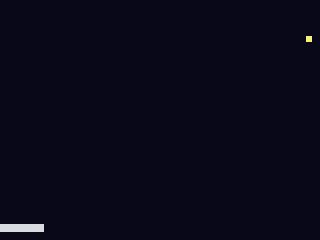
pg.collide(ax1,ay1,ax2,ay2, bx1,by1,bx2,by2) is a fast box-overlap test
(AABB, axis-aligned bounding box): it just checks whether two upright rectangles overlap. On a
paddle hit (only while moving down) we send the ball up and nudge velocity_x by where on the paddle
it landed, so you can aim. That variable bounce angle is why we now need sub-pixel movement:
a steered ball travels at speeds like 1.4 px/frame, fractions of a pixel that whole-pixel
integers can’t express. So the ball now keeps a sub-pixel position in ball.fx/ball.fy
(floats) with a float velocity; ball.x/ball.y are just those values rounded to whole
pixels for drawing and collision. Falling past the bottom costs a life and re-serves. You
see: a volley you can keep alive. Try it: change the 0.06 steering factor.
21 collapsed lines
# Bounce -- step 5: the paddle hits the ball, and you can miss.## What you learn: box collision + a control-feel trick, and WHY we now need# sub-pixel movement. pg.collide(ax1,ay1,ax2,ay2, bx1,by1,bx2,by2) is a fast# axis-aligned overlap test. On a paddle hit we send the ball upward and steer it# by WHERE on the paddle it landed -- so you can aim. That variable bounce angle# means the ball must travel at speeds like 1.4 px/frame: FRACTIONS of a pixel,# which whole-pixel integers can't express. So the ball now keeps a sub-pixel# position in ball.fx / ball.fy (floats) and a float velocity; ball.x / ball.y are# just those values rounded to whole pixels for drawing and collision.## New vs step 4: ball.fx/.fy + float velocity, pg.collide, steering the bounce by# hit offset, lives + reset.## Run: python3 sim/run.py tutorials/01-bounce/step5_paddle.py --hold LEFT --shot /tmp/s5.png
import picogame as pgimport picogame_gameimport picogame_inputimport picogame_clockimport picogame_shapes as shp
W, H = picogame_game.screen() # never hardcode: the same game runs at 240x240 and 640x480PADDLE_W, PADDLE_H = 44, 8BALL = 6
scene, _, _ = picogame_game.setup(background=pg.rgb565(8, 10, 24))btn = picogame_input.Buttons()clock = picogame_clock.Clock(40)
paddle = pg.Sprite(shp.rect(PADDLE_W, PADDLE_H, pg.rgb565(220, 220, 230)), (W - PADDLE_W) // 2, H - 16)ball = pg.Sprite(shp.rect(BALL, BALL, pg.rgb565(255, 240, 120)), W // 2, H // 2)scene.add(paddle)scene.add(ball)
velocity_x, velocity_y = 2.4, -2.6 # NEW: float velocity (fractions of a pixel)lives = 3
def serve(): global velocity_x, velocity_y ball.move(W // 2, H // 2) velocity_x, velocity_y = 2.4, -2.6
while True: btn.poll() delta_x = btn.is_pressed(btn.RIGHT) - btn.is_pressed(btn.LEFT) if delta_x: paddle.move(max(0, min(W - PADDLE_W, paddle.x + delta_x * 5)), paddle.y)
# integrate the float velocity into the ball's sub-pixel position ball.fx += velocity_x ball.fy += velocity_y if ball.fx < 0: ball.fx = 0; velocity_x = -velocity_x elif ball.fx > W - BALL: ball.fx = W - BALL; velocity_x = -velocity_x if ball.fy < 0: ball.fy = 0; velocity_y = -velocity_y
# paddle bounce: only when moving DOWN and the boxes overlap if velocity_y > 0 and pg.collide(ball.x, ball.y, ball.x + BALL, ball.y + BALL, paddle.x, paddle.y, paddle.x + PADDLE_W, paddle.y + PADDLE_H): velocity_y = -abs(velocity_y) # steer: distance of ball centre from paddle centre -> sideways speed velocity_x += (ball.x + BALL / 2 - (paddle.x + PADDLE_W / 2)) * 0.06
if ball.fy > H: # missed the ball lives -= 1 if lives <= 0: lives = 3 serve()
scene.refresh() clock.tick()step 6 — step6_bricks.py · the Tilemap
Section titled “step 6 — step6_bricks.py · the Tilemap”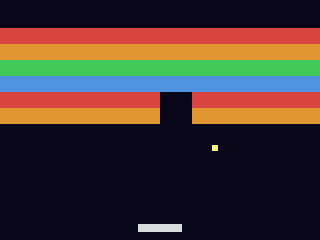 A
A Tilemap is a grid of identical tiles that share one image, instead of
one sprite per cell. It’s backed by one tileset bitmap, 1 byte per cell, far cheaper than a
sprite per brick. shp.tileset_colors(w, h, [colours]) builds a sheet where value 0 is
empty and 1..N are colours. Map the ball’s pixel to a tile (tile_x = pixel_x // BRICK_W), read it, and
set it to 0 to clear it. Clear the wall → rebuild. You see: a 10×6 wall you break.
Try it: change ROWS or the brick colours.
17 collapsed lines
# Bounce -- step 6: a wall of bricks (a Tilemap).## What you learn: the Tilemap. A grid of tiles backed by ONE bitmap (a tileset),# stored as 1 byte per cell -- far cheaper than a Sprite per brick. We build the# tileset with shp.tileset_colors (frame 0 = empty, 1..4 = colours), fill the grid,# and on a ball hit we find the tile under the ball, read it, and set it to 0 to# clear it. Map a pixel to a tile with tx = (px - origin_x) // tile_w.## New vs step 5: pg.Tilemap, shp.tileset_colors, pixel->tile mapping, clearing a tile.## Run: python3 sim/run.py tutorials/01-bounce/step6_bricks.py --shot /tmp/s6.png
import picogame as pgimport picogame_gameimport picogame_inputimport picogame_clockimport picogame_shapes as shp
W, H = picogame_game.screen() # never hardcode: the same game runs at 240x240 and 640x480PADDLE_W, PADDLE_H = 44, 8BALL = 6BRICK_W, BRICK_H = 32, 16 # brick (tile) sizeCOLS, ROWS = W // BRICK_W, 6 # 10 x 6 wallBRICK_Y = 28 # wall top (leaves a HUD strip)
scene, _, _ = picogame_game.setup(background=pg.rgb565(8, 10, 24))btn = picogame_input.Buttons()clock = picogame_clock.Clock(40)
# tileset: value 0 empty, 1..4 = four brick coloursbrick_colors = [pg.rgb565(220, 70, 70), pg.rgb565(230, 150, 50), pg.rgb565(70, 200, 90), pg.rgb565(80, 150, 230)]bricks = pg.Tilemap(shp.tileset_colors(BRICK_W, BRICK_H, brick_colors), COLS, ROWS)bricks.move(0, BRICK_Y)
def build_wall(): global bricks_left for tile_y in range(ROWS): for tile_x in range(COLS): bricks.set_tile(tile_x, tile_y, 1 + (tile_y % 4)) # row -> colour 1..4 bricks_left = COLS * ROWS
build_wall()paddle = pg.Sprite(shp.rect(PADDLE_W, PADDLE_H, pg.rgb565(220, 220, 230)), (W - PADDLE_W) // 2, H - 16)ball = pg.Sprite(shp.rect(BALL, BALL, pg.rgb565(255, 240, 120)), W // 2, H // 2)scene.add(bricks) # add the wall first (drawn under the ball)scene.add(paddle)scene.add(ball)
velocity_x, velocity_y = 2.4, -2.6lives = 3
def serve(): global velocity_x, velocity_y ball.move(W // 2, H // 2) velocity_x, velocity_y = 2.4, -2.6
20 collapsed lines
while True: btn.poll() delta_x = btn.is_pressed(btn.RIGHT) - btn.is_pressed(btn.LEFT) if delta_x: paddle.move(max(0, min(W - PADDLE_W, paddle.x + delta_x * 5)), paddle.y)
ball.fx += velocity_x ball.fy += velocity_y if ball.fx < 0: ball.fx = 0; velocity_x = -velocity_x elif ball.fx > W - BALL: ball.fx = W - BALL; velocity_x = -velocity_x if ball.fy < 0: ball.fy = 0; velocity_y = -velocity_y
if velocity_y > 0 and pg.collide(ball.x, ball.y, ball.x + BALL, ball.y + BALL, paddle.x, paddle.y, paddle.x + PADDLE_W, paddle.y + PADDLE_H): velocity_y = -abs(velocity_y) velocity_x += (ball.x + BALL / 2 - (paddle.x + PADDLE_W / 2)) * 0.06
# brick hit: the tile under the ball's centre center_x, center_y = ball.x + BALL // 2, ball.y + BALL // 2 tile_x = center_x // BRICK_W tile_y = (center_y - BRICK_Y) // BRICK_H if 0 <= tile_x < COLS and 0 <= tile_y < ROWS and bricks.get_tile(tile_x, tile_y): bricks.set_tile(tile_x, tile_y, 0) # clear the brick bricks_left -= 1 velocity_y = -velocity_y if bricks_left == 0: # cleared the wall -> rebuild build_wall() serve()
if ball.fy > H: lives -= 1 if lives <= 0: lives = 3 build_wall() serve()
scene.refresh() clock.tick()step 7 — step7_hud.py · text / status bar
Section titled “step 7 — step7_hud.py · text / status bar”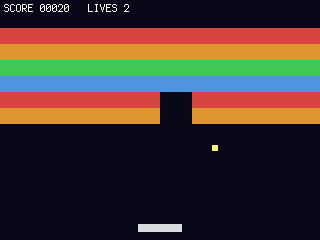
picogame_ui’s SceneLabel renders text into the scene as a fixed layer (drawn by
refresh(), and camera-independent, handy once the world scrolls). It uses the bundled
terminalio.FONT, so no font asset. label.set(...) re-renders only when the text
changes. You see: SCORE / LIVES across the top. Try it: add the brick count.
21 collapsed lines
# Bounce -- step 7: a score + lives status bar.## What you learn: text / HUD. picogame_ui.SceneLabel renders text into the scene as a# "fixed" layer -- it's drawn by scene.refresh() like everything else, and (because# it's fixed) it would stay put even if the world scrolled (it doesn't here, but# you'll want that in a platformer). It uses the bundled terminalio.FONT, so no font# asset is needed. Call label.set(...) each frame; it only re-renders when the text# actually changes.## New vs step 6: terminalio.FONT, picogame_ui.SceneLabel, a running score.## Run: python3 sim/run.py tutorials/01-bounce/step7_hud.py --shot /tmp/s7.png
import terminalioimport picogame as pgimport picogame_gameimport picogame_inputimport picogame_clockimport picogame_shapes as shpimport picogame_ui as ui
W, H = picogame_game.screen() # never hardcode: the same game runs at 240x240 and 640x480PADDLE_W, PADDLE_H = 44, 8BALL = 6BRICK_W, BRICK_H = 32, 16COLS, ROWS = W // BRICK_W, 6BRICK_Y = 28BACKGROUND = pg.rgb565(8, 10, 24)
scene, _, _ = picogame_game.setup(background=BACKGROUND)btn = picogame_input.Buttons()clock = picogame_clock.Clock(40)
brick_colors = [pg.rgb565(220, 70, 70), pg.rgb565(230, 150, 50), pg.rgb565(70, 200, 90), pg.rgb565(80, 150, 230)]bricks = pg.Tilemap(shp.tileset_colors(BRICK_W, BRICK_H, brick_colors), COLS, ROWS)bricks.move(0, BRICK_Y)
def build_wall(): global bricks_left for tile_y in range(ROWS): for tile_x in range(COLS): bricks.set_tile(tile_x, tile_y, 1 + (tile_y % 4)) bricks_left = COLS * ROWS
build_wall()paddle = pg.Sprite(shp.rect(PADDLE_W, PADDLE_H, pg.rgb565(220, 220, 230)), (W - PADDLE_W) // 2, H - 16)ball = pg.Sprite(shp.rect(BALL, BALL, pg.rgb565(255, 240, 120)), W // 2, H // 2)scene.add(bricks)scene.add(paddle)scene.add(ball)# NEW: a HUD label. Adding it to the scene happens inside SceneLabel (as a fixed layer).hud = ui.SceneLabel(scene, pg, terminalio.FONT, 4, 2, pg.rgb565(255, 255, 255), BACKGROUND)
velocity_x, velocity_y = 2.4, -2.6score = 0lives = 3
def serve(): global velocity_x, velocity_y ball.move(W // 2, H // 2) velocity_x, velocity_y = 2.4, -2.6
while True: btn.poll() delta_x = btn.is_pressed(btn.RIGHT) - btn.is_pressed(btn.LEFT) if delta_x: paddle.move(max(0, min(W - PADDLE_W, paddle.x + delta_x * 5)), paddle.y)
17 collapsed lines
ball.fx += velocity_x ball.fy += velocity_y if ball.fx < 0: ball.fx = 0; velocity_x = -velocity_x elif ball.fx > W - BALL: ball.fx = W - BALL; velocity_x = -velocity_x if ball.fy < 0: ball.fy = 0; velocity_y = -velocity_y
if velocity_y > 0 and pg.collide(ball.x, ball.y, ball.x + BALL, ball.y + BALL, paddle.x, paddle.y, paddle.x + PADDLE_W, paddle.y + PADDLE_H): velocity_y = -abs(velocity_y) velocity_x += (ball.x + BALL / 2 - (paddle.x + PADDLE_W / 2)) * 0.06
center_x, center_y = ball.x + BALL // 2, ball.y + BALL // 2 tile_x, tile_y = center_x // BRICK_W, (center_y - BRICK_Y) // BRICK_H if 0 <= tile_x < COLS and 0 <= tile_y < ROWS and bricks.get_tile(tile_x, tile_y): bricks.set_tile(tile_x, tile_y, 0) bricks_left -= 1 score += 10 # NEW: score on a hit velocity_y = -velocity_y if bricks_left == 0: build_wall() serve()
if ball.fy > H: lives -= 1 if lives <= 0: lives = 3 score = 0 build_wall() serve()
hud.set("SCORE %05d LIVES %d" % (score, lives)) # update text, then draw it scene.refresh() # draws the scene incl. the HUD clock.tick()step 8 — step8_particles.py · juice (particles + sound)
Section titled “step 8 — step8_particles.py · juice (particles + sound)”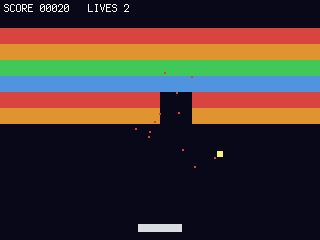 Now we add some juice, the small touches that make a hit feel good.
Particles is a cheap burst system: emit(x, y, count, speed, life, colour) then
tick() each frame. We burst in the brick’s colour on every break. picogame_audio.tone()
makes a beep with no .wav, a blip per hit. (Audio is wrapped in try/except, so it’s
silent but safe where there’s no audio output, like the simulator.) You see: coloured
sparks + (on hardware) a blip. Try it: change the particle count/gravity.
22 collapsed lines
# Bounce -- step 8: juice (particles + sound).## What you learn: feedback that makes a hit feel good. pg.Particles is a cheap# burst system: emit(x, y, count, speed, life, colour) spawns particles, tick()# advances them (with gravity), and the scene draws them. We burst on every brick# break, in the brick's colour. And picogame_audio.tone() builds a short square-wave# beep with no .wav file -- a tiny blip on each hit. (Audio is wrapped in try/except# so it degrades gracefully where there's no audio output, e.g. the simulator.)## New vs step 7: pg.Particles (emit/tick), picogame_audio.tone() + Audio().sfx()# (a blip on each hit and a low tone when you miss the ball).## Run: python3 sim/run.py tutorials/01-bounce/step8_particles.py --shot /tmp/s8.png
import terminalioimport picogame as pgimport picogame_gameimport picogame_inputimport picogame_clockimport picogame_shapes as shpimport picogame_ui as ui
W, H = picogame_game.screen() # never hardcode: the same game runs at 240x240 and 640x480PADDLE_W, PADDLE_H = 44, 8BALL = 6BRICK_W, BRICK_H = 32, 16COLS, ROWS = W // BRICK_W, 6BRICK_Y = 28BACKGROUND = pg.rgb565(8, 10, 24)
scene, _, _ = picogame_game.setup(background=BACKGROUND)btn = picogame_input.Buttons()clock = picogame_clock.Clock(40)
# optional audio: a beep on each hit (no asset needed). None if no audio backend.try: import picogame_audio audio = picogame_audio.Audio() blip = picogame_audio.tone(660, 35) lose = picogame_audio.tone(150, 160) # low tone when a ball is missedexcept Exception: audio = None blip = lose = None
brick_colors = [pg.rgb565(220, 70, 70), pg.rgb565(230, 150, 50), pg.rgb565(70, 200, 90), pg.rgb565(80, 150, 230)]brick_ts = shp.tileset_colors(BRICK_W, BRICK_H, brick_colors)bricks = pg.Tilemap(brick_ts, COLS, ROWS)bricks.move(0, BRICK_Y)
def build_wall(): global bricks_left for tile_y in range(ROWS): for tile_x in range(COLS): bricks.set_tile(tile_x, tile_y, 1 + (tile_y % 4)) bricks_left = COLS * ROWS
build_wall()paddle = pg.Sprite(shp.rect(PADDLE_W, PADDLE_H, pg.rgb565(220, 220, 230)), (W - PADDLE_W) // 2, H - 16)ball = pg.Sprite(shp.rect(BALL, BALL, pg.rgb565(255, 240, 120)), W // 2, H // 2)particles = pg.Particles(96, size=2, gravity=0.12) # NEWscene.add(bricks)scene.add(particles) # behind paddle+ballscene.add(paddle)scene.add(ball)35 collapsed lines
hud = ui.SceneLabel(scene, pg, terminalio.FONT, 4, 2, pg.rgb565(255, 255, 255), BACKGROUND)
velocity_x, velocity_y = 2.4, -2.6score = 0lives = 3
def serve(): global velocity_x, velocity_y ball.move(W // 2, H // 2) velocity_x, velocity_y = 2.4, -2.6
while True: btn.poll() delta_x = btn.is_pressed(btn.RIGHT) - btn.is_pressed(btn.LEFT) if delta_x: paddle.move(max(0, min(W - PADDLE_W, paddle.x + delta_x * 5)), paddle.y)
ball.fx += velocity_x ball.fy += velocity_y if ball.fx < 0: ball.fx = 0; velocity_x = -velocity_x elif ball.fx > W - BALL: ball.fx = W - BALL; velocity_x = -velocity_x if ball.fy < 0: ball.fy = 0; velocity_y = -velocity_y
if velocity_y > 0 and pg.collide(ball.x, ball.y, ball.x + BALL, ball.y + BALL, paddle.x, paddle.y, paddle.x + PADDLE_W, paddle.y + PADDLE_H): velocity_y = -abs(velocity_y) velocity_x += (ball.x + BALL / 2 - (paddle.x + PADDLE_W / 2)) * 0.06
center_x, center_y = ball.x + BALL // 2, ball.y + BALL // 2 tile_x, tile_y = center_x // BRICK_W, (center_y - BRICK_Y) // BRICK_H if 0 <= tile_x < COLS and 0 <= tile_y < ROWS: cell = bricks.get_tile(tile_x, tile_y) if cell: bricks.set_tile(tile_x, tile_y, 0) bricks_left -= 1 score += 10 velocity_y = -velocity_y # burst in the brick's colour at the brick's centre brick_x = tile_x * BRICK_W + BRICK_W // 2 brick_y = BRICK_Y + tile_y * BRICK_H + BRICK_H // 2 particles.emit(brick_x, brick_y, 14, 3, 22, brick_colors[cell - 1]) if audio: audio.sfx(blip) if bricks_left == 0: build_wall() serve()
if ball.fy > H: lives -= 1 if audio: audio.sfx(lose) # low tone on a missed ball if lives <= 0: lives = 3 score = 0 build_wall() serve()
particles.tick() # advance the burst each frame hud.set("SCORE %05d LIVES %d" % (score, lives)) scene.refresh() clock.tick()step 9 — step9_sprites.py · rectangles → sprites
Section titled “step 9 — step9_sprites.py · rectangles → sprites”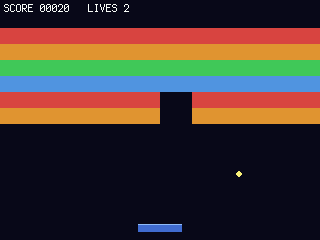 The payoff. We change only the two bitmaps: the ball becomes a round disc
(
The payoff. We change only the two bitmaps: the ball becomes a round disc
(shp.circle) and the paddle gets a multi-colour Bitmap with a highlight. Diff this file
against step 8: the entire game loop is byte-for-byte identical. A Sprite doesn’t care
whether its bitmap is a rectangle, a generated shape, or a PNG you imported in the editor.
You see: the same game, now with a round ball and a shaded paddle. Try it: load a
a PNG through the editor → scene pipeline (open it in the web editor) and
assign it as the bitmap.
24 collapsed lines
# Bounce -- step 9: from rectangles to sprites (the orthogonality lesson).## What you learn: art is independent of mechanics. We built a COMPLETE game out of# coloured rectangles. To make it look like a real game we change ONLY the bitmaps:# the ball becomes a round disc (shp.circle) and the paddle gets a multi-colour# bitmap with a highlight stripe. Compare this file to step 8: the entire game loop# -- movement, bouncing, collision, scoring, particles -- is byte-for-byte the same.# A Sprite doesn't care whether its bitmap is a rectangle, a generated shape, or a# PNG you imported in the editor. (To use real PNG art: draw/import it in the editor,# export a scene, and load it with picogame_scene -- see tutorials/README.md.)## New vs step 8: only the two bitmap definitions changed (ball + paddle art).## Run: python3 sim/run.py tutorials/01-bounce/step9_sprites.py --shot /tmp/s9.png
import arrayimport terminalioimport picogame as pgimport picogame_gameimport picogame_inputimport picogame_clockimport picogame_shapes as shpimport picogame_ui as ui
W, H = picogame_game.screen() # never hardcode: the same game runs at 240x240 and 640x480PADDLE_W, PADDLE_H = 44, 8BALL = 6BRICK_W, BRICK_H = 32, 16COLS, ROWS = W // BRICK_W, 6BRICK_Y = 28BACKGROUND = pg.rgb565(8, 10, 24)
scene, _, _ = picogame_game.setup(background=BACKGROUND)btn = picogame_input.Buttons()clock = picogame_clock.Clock(40)
try: import picogame_audio audio = picogame_audio.Audio() blip = picogame_audio.tone(660, 35) lose = picogame_audio.tone(150, 160) # low tone when a ball is missedexcept Exception: audio = None blip = lose = None
def paddle_art(w, h): """A 2-colour paddle bitmap: blue body + a lighter highlight on the top row. This is what 'real sprite art' is -- a PAL8 bitmap with more than one colour.""" palette = array.array("H", [pg.rgb565(0, 0, 0), pg.rgb565(70, 110, 210), pg.rgb565(150, 190, 255)]) data = bytearray(b"\x01" * (w * h)) # index 1 = body for x in range(w): data[x] = 2 # index 2 = highlight on the top row return pg.Bitmap(data, w, h, format=pg.PAL8, palette=palette, frames=1, stride=w, transparent=0)
brick_colors = [pg.rgb565(220, 70, 70), pg.rgb565(230, 150, 50), pg.rgb565(70, 200, 90), pg.rgb565(80, 150, 230)]14 collapsed lines
bricks = pg.Tilemap(shp.tileset_colors(BRICK_W, BRICK_H, brick_colors), COLS, ROWS)bricks.move(0, BRICK_Y)
def build_wall(): global bricks_left for tile_y in range(ROWS): for tile_x in range(COLS): bricks.set_tile(tile_x, tile_y, 1 + (tile_y % 4)) bricks_left = COLS * ROWS
build_wall()# >>> the ONLY change from step 8: art instead of plain rectangles <<<paddle = pg.Sprite(paddle_art(PADDLE_W, PADDLE_H), (W - PADDLE_W) // 2, H - 16)ball = pg.Sprite(shp.circle(BALL, pg.rgb565(255, 240, 120)), W // 2, H // 2)70 collapsed lines
# >>> everything below is identical to step 8 <<<particles = pg.Particles(96, size=2, gravity=0.12)scene.add(bricks)scene.add(particles)scene.add(paddle)scene.add(ball)hud = ui.SceneLabel(scene, pg, terminalio.FONT, 4, 2, pg.rgb565(255, 255, 255), BACKGROUND)
velocity_x, velocity_y = 2.4, -2.6score = 0lives = 3
def serve(): global velocity_x, velocity_y ball.move(W // 2, H // 2) velocity_x, velocity_y = 2.4, -2.6
while True: btn.poll() delta_x = btn.is_pressed(btn.RIGHT) - btn.is_pressed(btn.LEFT) if delta_x: paddle.move(max(0, min(W - PADDLE_W, paddle.x + delta_x * 5)), paddle.y)
ball.fx += velocity_x ball.fy += velocity_y if ball.fx < 0: ball.fx = 0; velocity_x = -velocity_x elif ball.fx > W - BALL: ball.fx = W - BALL; velocity_x = -velocity_x if ball.fy < 0: ball.fy = 0; velocity_y = -velocity_y
if velocity_y > 0 and pg.collide(ball.x, ball.y, ball.x + BALL, ball.y + BALL, paddle.x, paddle.y, paddle.x + PADDLE_W, paddle.y + PADDLE_H): velocity_y = -abs(velocity_y) velocity_x += (ball.x + BALL / 2 - (paddle.x + PADDLE_W / 2)) * 0.06
center_x, center_y = ball.x + BALL // 2, ball.y + BALL // 2 tile_x, tile_y = center_x // BRICK_W, (center_y - BRICK_Y) // BRICK_H if 0 <= tile_x < COLS and 0 <= tile_y < ROWS: cell = bricks.get_tile(tile_x, tile_y) if cell: bricks.set_tile(tile_x, tile_y, 0) bricks_left -= 1 score += 10 velocity_y = -velocity_y particles.emit(tile_x * BRICK_W + BRICK_W // 2, BRICK_Y + tile_y * BRICK_H + BRICK_H // 2, 14, 3, 22, brick_colors[cell - 1]) if audio: audio.sfx(blip) if bricks_left == 0: build_wall() serve()
if ball.fy > H: lives -= 1 if audio: audio.sfx(lose) # low tone on a missed ball if lives <= 0: lives = 3 score = 0 build_wall() serve()
particles.tick() hud.set("SCORE %05d LIVES %d" % (score, lives)) scene.refresh() clock.tick()Where to go next: 02-starship (pools, rotation, shooting, state machine), or jump to the web editor and the scene format to build levels as data instead of by hand. There’s also 03-quest if you want a longer game to pull apart.